
How to Create a Certificate on Olareport: A Step-by-Step Guide

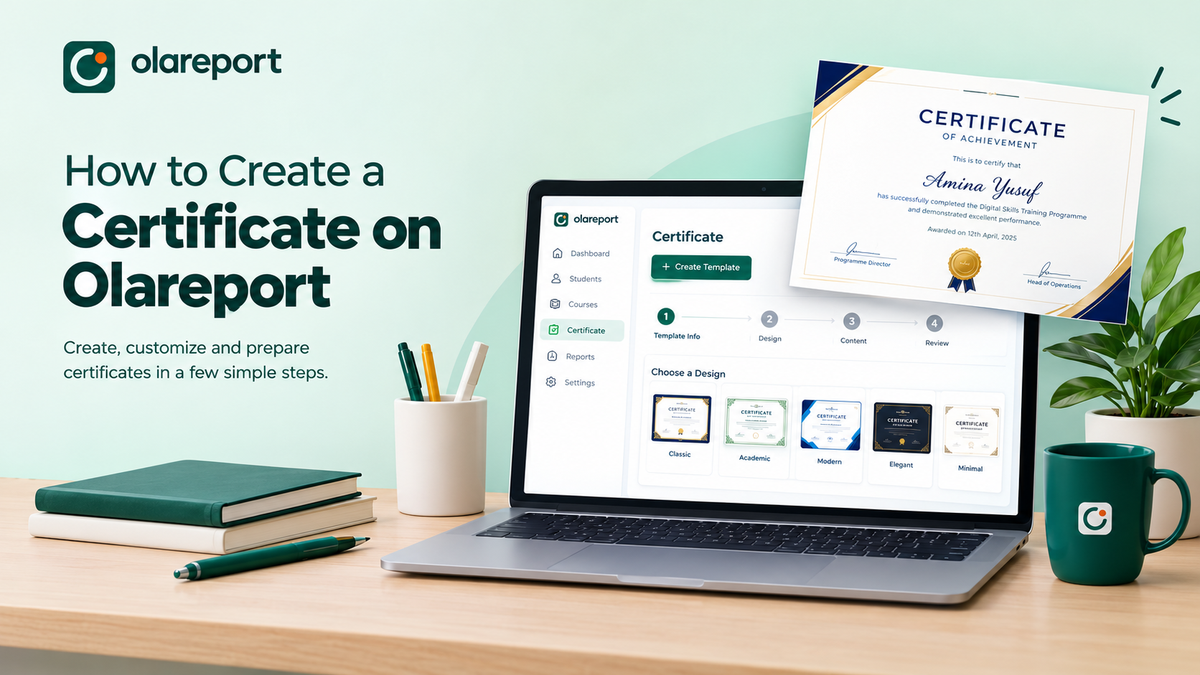
Creating professional certificates does not have to be complicated. Whether you are organising a training programme, recognising academic achievements, rewarding participation, or celebrating professional milestones, having a well-designed certificate helps make the recognition more meaningful.
With Olareport, you can create and customise certificate templates to suit your needs. From naming your template to selecting a design and adding the necessary details, the process is simple and straightforward.
In this guide, we will walk you through every step involved in creating a certificate on Olareport.
Step 1: Go to the Certificate Section
To get started, log in to your Olareport account and navigate to your dashboard.
- Locate the Certificate section on your dashboard.
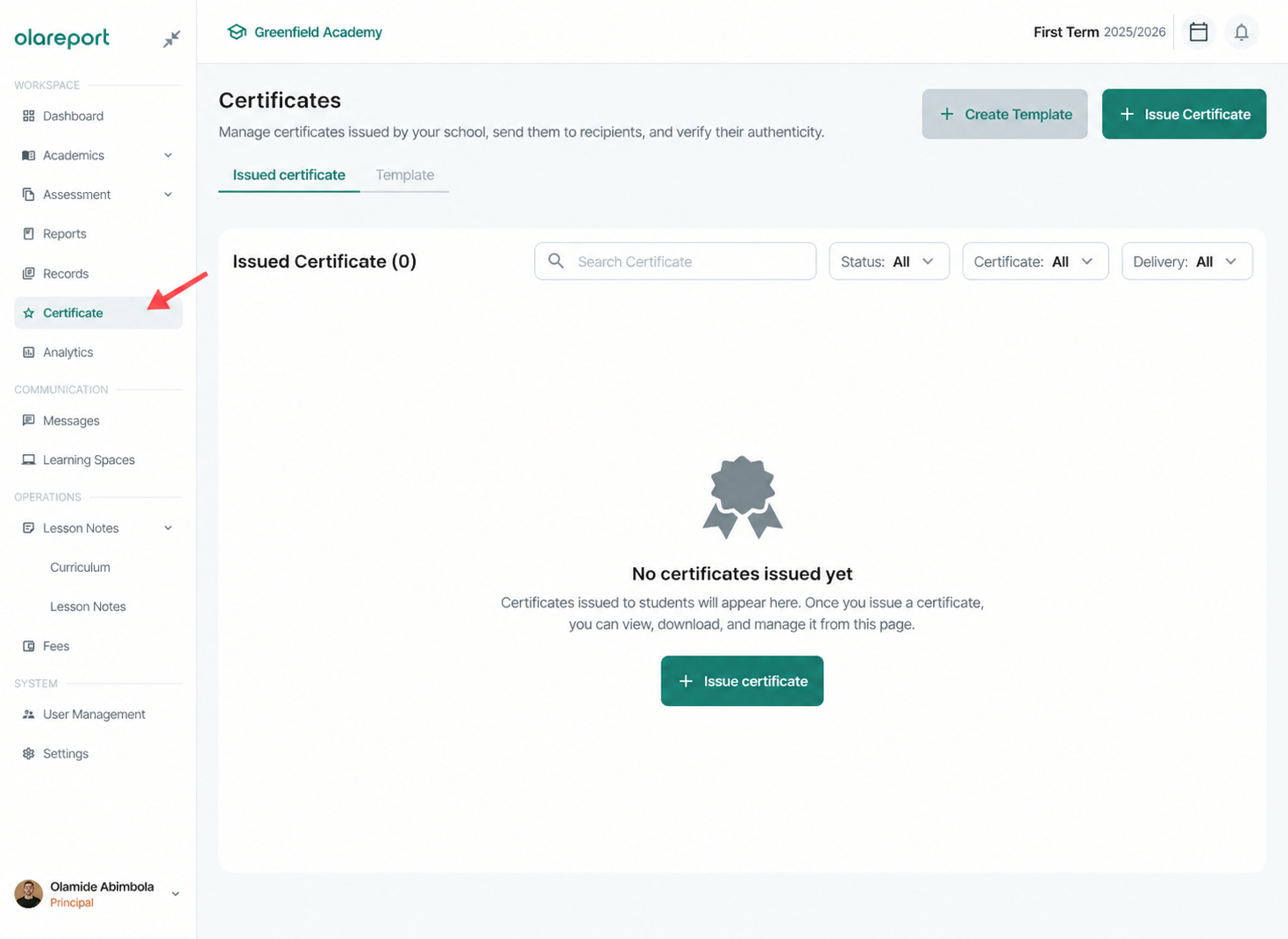
- Click on Certificate to access the certificate management area.
- Select Create Template to begin creating a new certificate.
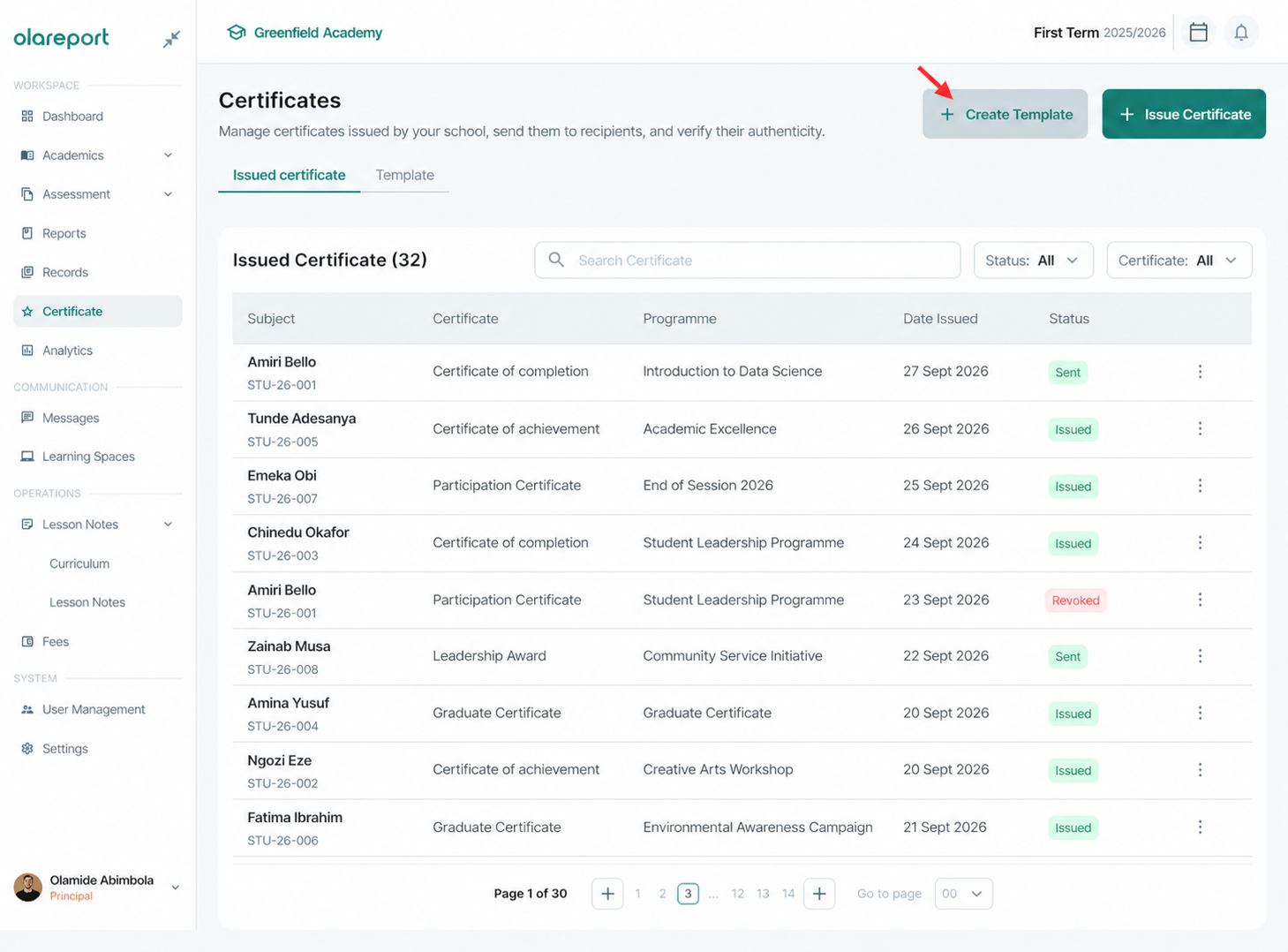
This takes you to the certificate creation process, where you can set up your template and customise its content.
Step 2: Name Your Certificate Template
The next step is to provide basic information about the certificate you want to create. This helps you identify and organise your templates, particularly when managing certificates for different programmes or occasions.
Complete the following fields:
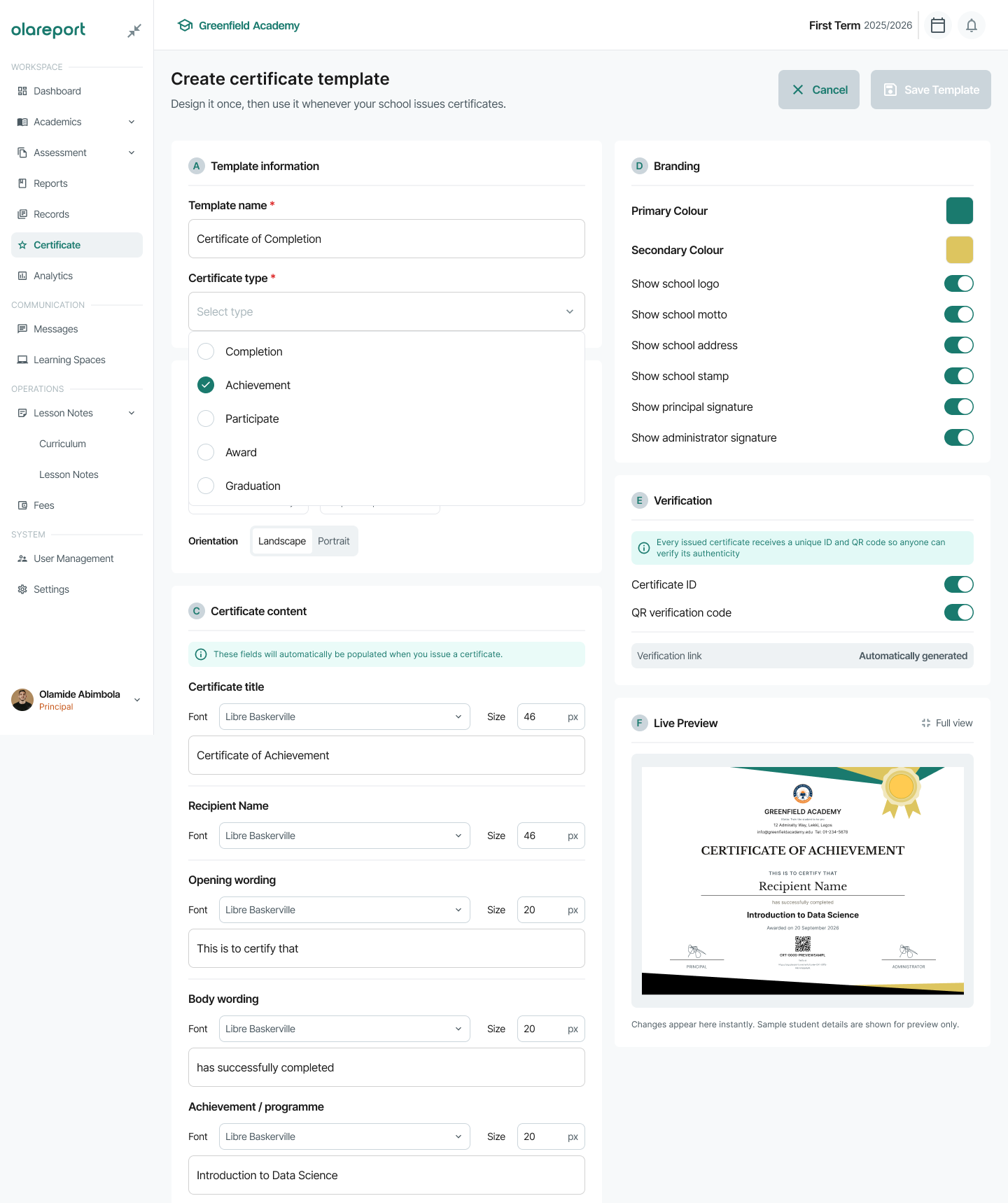
1. Template Name
Enter a clear and descriptive name for your certificate template. Choose a name that makes it easy to identify the purpose of the certificate.
For example:
- Leadership Training Certificate
- Certificate of Participation
- Academic Excellence Award
- Professional Development Certificate
2. Certification Type
Select the certification type that corresponds to the certificate you are creating.
Choose the option that best represents the purpose of your certificate, whether it is for academic recognition, programme participation, professional development, or another relevant category available on the platform.
Review your entries to ensure the information is correct before proceeding.
Step 3: Choose Your Certificate Design
Once you have entered the basic information, the next step is to choose a design for your certificate.
Your design contributes to the overall appearance of the certificate and should reflect the occasion, audience, or organisation issuing it.
Olareport offers five certificate design styles to choose from:
1. Classic
A traditional design suitable for formal recognition, professional achievements, and general certification.
2. Academic
An appropriate option for educational institutions, academic achievements, school programmes, and learning milestones.
3. Modern
A contemporary design for organisations that prefer a clean, current, and professional appearance.
4. Elegant
A refined design suited to special recognition, awards, ceremonies, and formal occasions.
5. Minimal
A simple, uncluttered design that prioritises readability and a clean presentation.
To select your preferred design:
- Review the available certificate styles.
- Identify the design that best suits your purpose.
- Click on your preferred style to select it.
Take a moment to consider the nature of the event and the audience receiving the certificate before making your choice..
Step 4: Add the Certificate Content
After selecting your design, you can begin adding the information that will appear on the certificate.
This is an important step because the wording determines what the certificate communicates and what the recipient is being recognised for.
Complete the following fields:
1. Recipient Name
This field identifies the person receiving the certificate.
Depending on how you intend to use the template, ensure that the recipient's name can be correctly entered or populated when the certificate is prepared for an individual.
2. Opening Wording
Add the introductory statement that establishes the purpose of the certificate.
Examples include:
- This certificate is proudly presented to
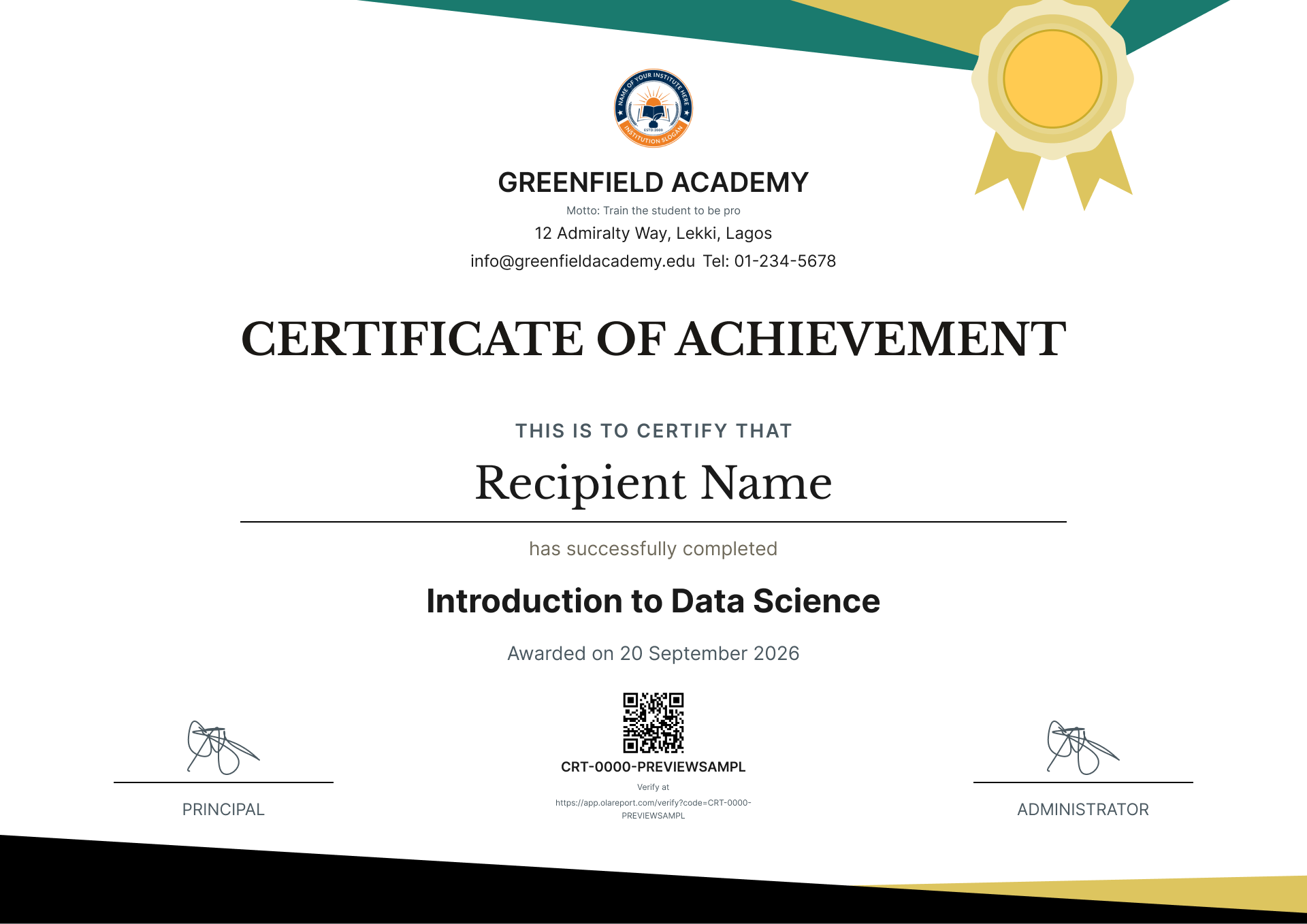
- This is to certify that
- We are pleased to recognise
Choose wording that matches the tone of the occasion and the type of recognition being given.
Before moving to the next step, ensure that the opening statement reads naturally and introduces the recipient appropriately.
Step 5: Add the Certificate Details
The final content stage involves completing the main message and specifying the reason for the certification.
1. Body Wording
Enter the main statement that explains the recognition being awarded.
Your body wording should communicate the achievement or contribution being acknowledged. Keep it clear, professional, and relevant to the occasion.
For example:
“In recognition of your outstanding commitment, dedication, and successful completion of the programme.”
You can adapt the wording to suit your organisation, programme, or event.
2. Achievements/Programme
Specify the achievement, programme, course, or activity for which the recipient is being recognised.
Examples include:
- Successful Completion of Digital Marketing Training
- Outstanding Academic Performance
- Participation in the Leadership Development Programme
- Excellence in Community Service
Be specific enough to make the purpose of the certificate clear to anyone who reads it.
Once you have completed these fields, review the information you have entered for spelling, clarity, and accuracy.
Step 6: Review Your Certificate Template
Before considering your template ready for use, review the information and design to ensure that everything is correct.
Use the following checklist:
- Confirm that the template name is clear and accurate.
- Check that the certification type is appropriate.
- Ensure that the selected design suits the occasion.
- Review the recipient name field and opening wording.
- Check the body wording for clarity and correctness.
- Confirm that the achievement or programme is accurately described.
- Check the overall presentation for readability and consistency.
If any information needs to be corrected, make the necessary adjustments before proceeding.
Create Professional Certificates with Olareport
From selecting a design to adding the final details, Olareport makes it easier to organise the information needed for a professional certificate template.
Whether you are recognising academic excellence, celebrating programme completion, or acknowledging professional achievements, the right certificate helps communicate the value of the accomplishment.
Your Certificate. Your Design. Your Recognition.


 Download App
